Oct. 12, 2026
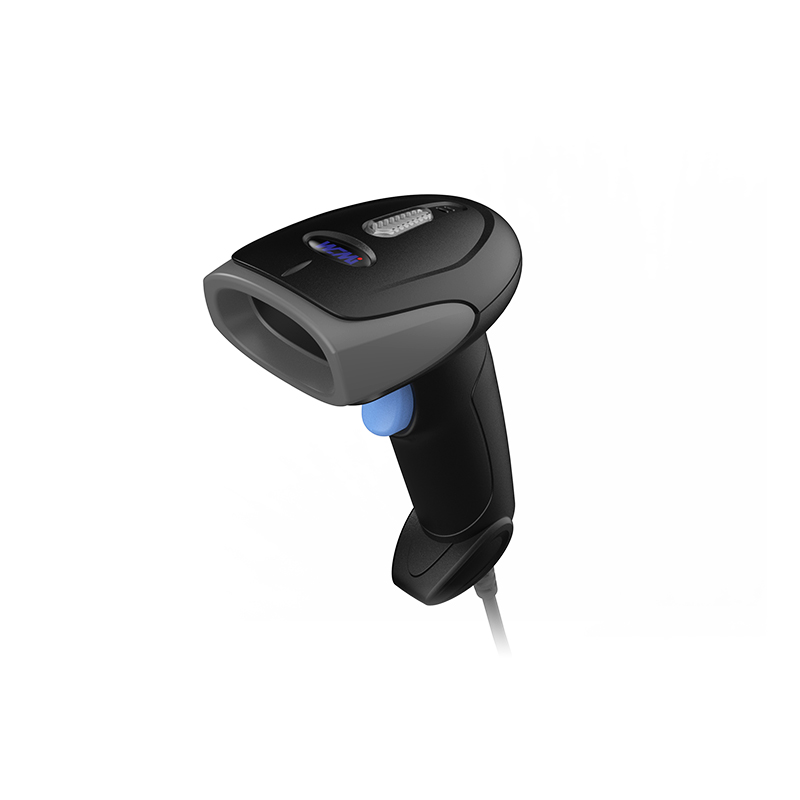
Desktop Barcode Scanners help businesses capture product, order, and patient data without manual typing. They are useful when a cashier, warehouse worker, or office employee needs both hands free. A best Desktop Barcode Scanner for retail checkout can reduce repeated key entry, while a USB desktop barcode scanner for inventory can connect to a computer with minimal setup. For modern QR codes and product labels, a hands-free 2D barcode scanner can read codes from paper or screens.

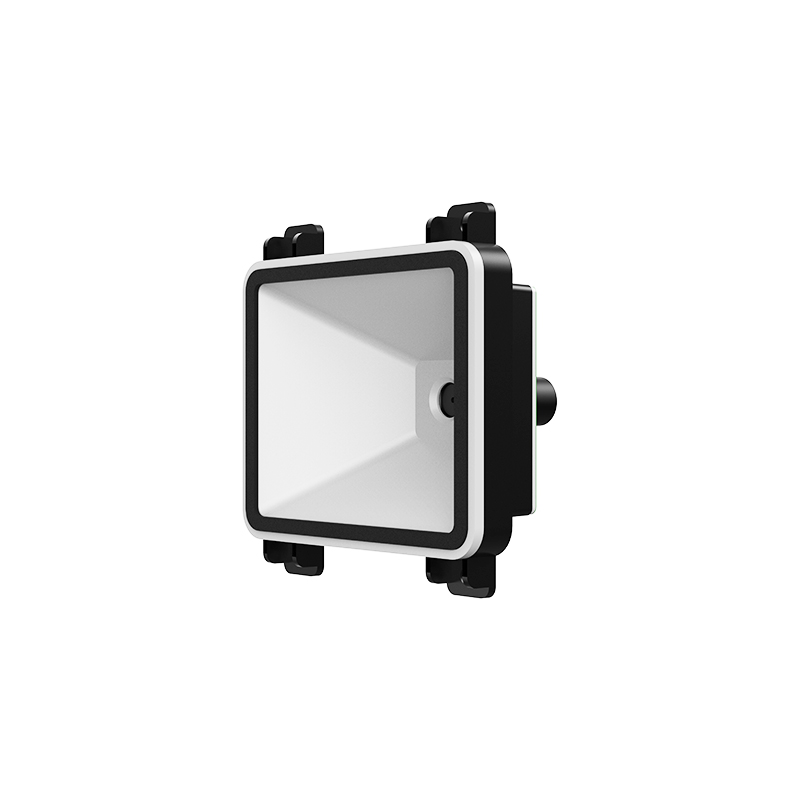
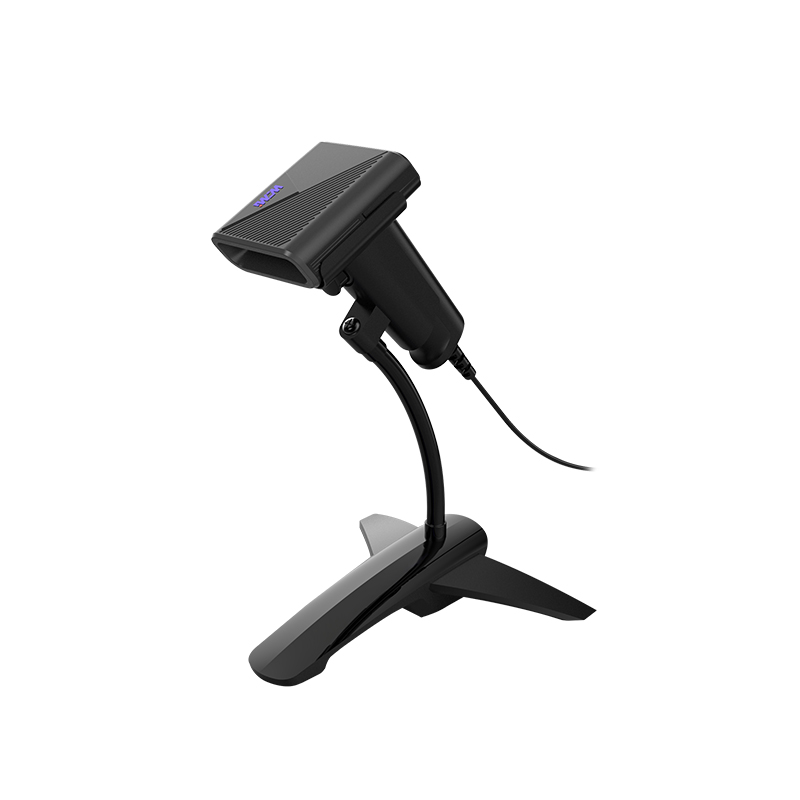
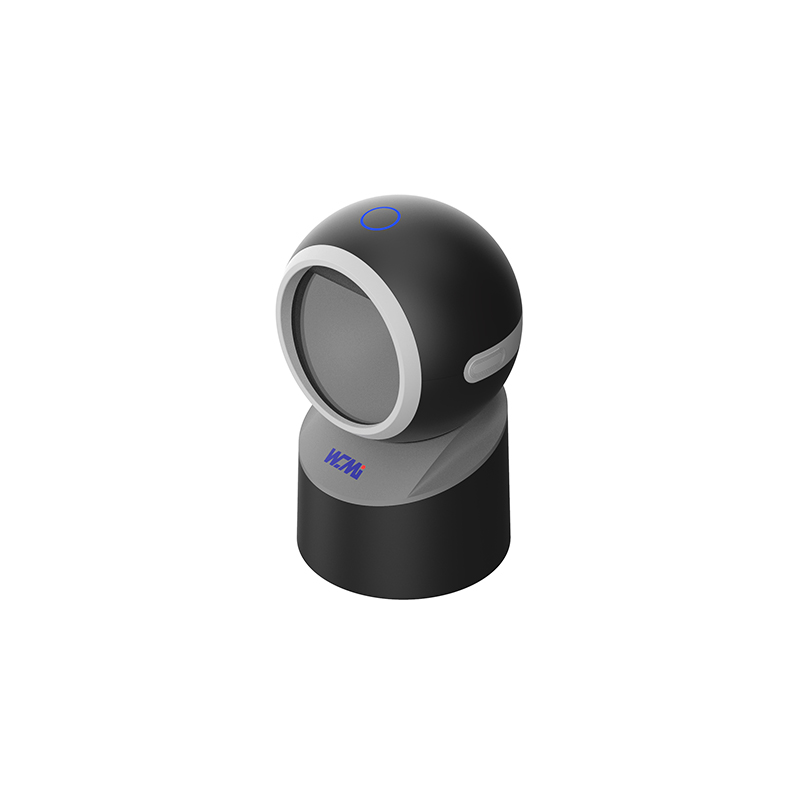
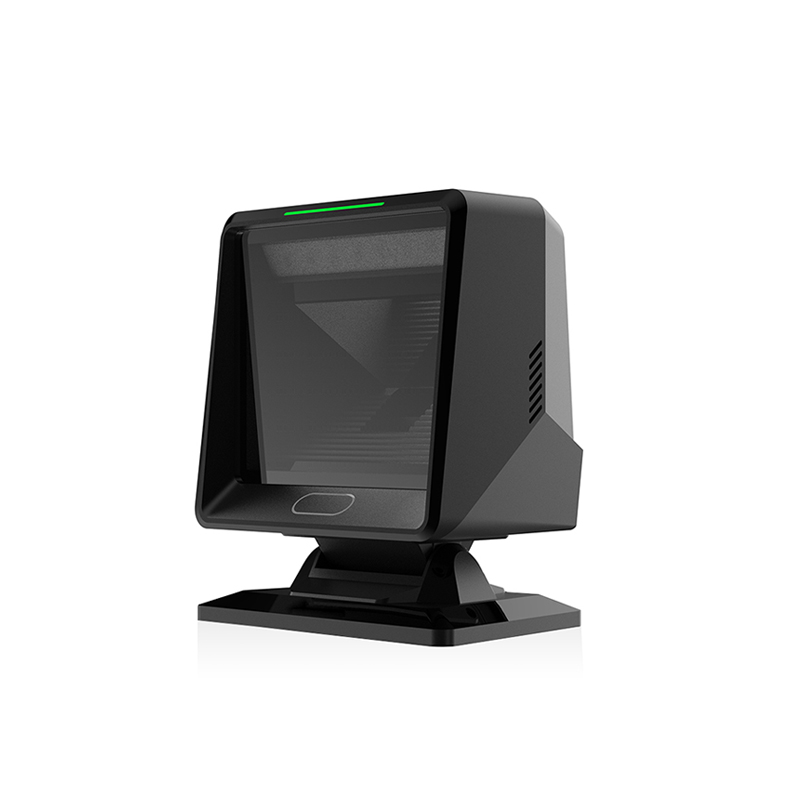
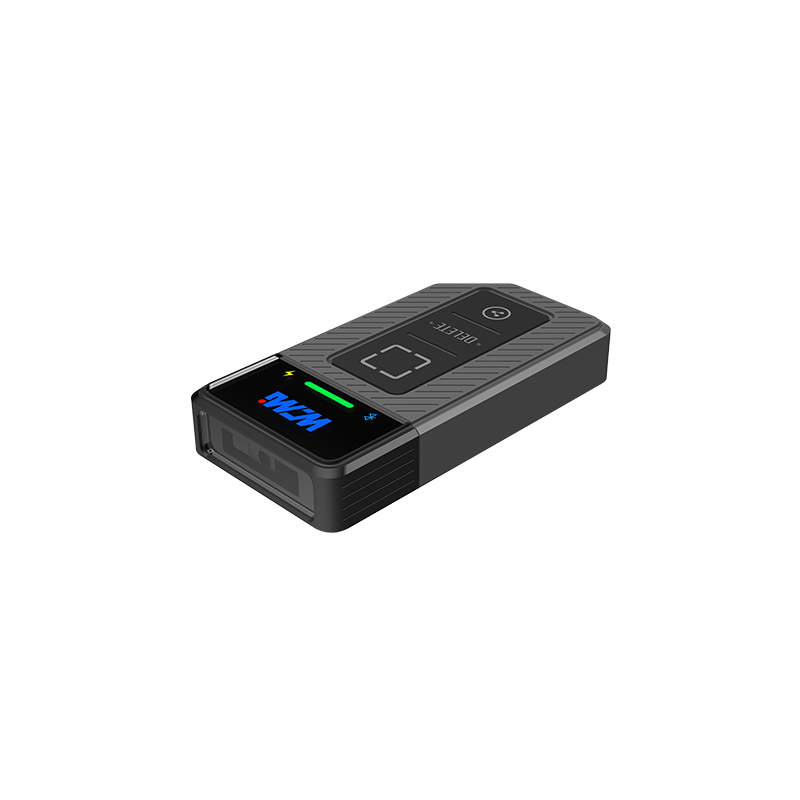
A desktop barcode scanner is a compact fixed-position scanner designed to sit on a counter, desk, packing station, or checkout surface. Instead of lifting a handheld device for every scan, the user presents a barcode to the scanner window. The device captures the pattern and sends the decoded number or text to a computer, point-of-sale system, tablet, or warehouse application.
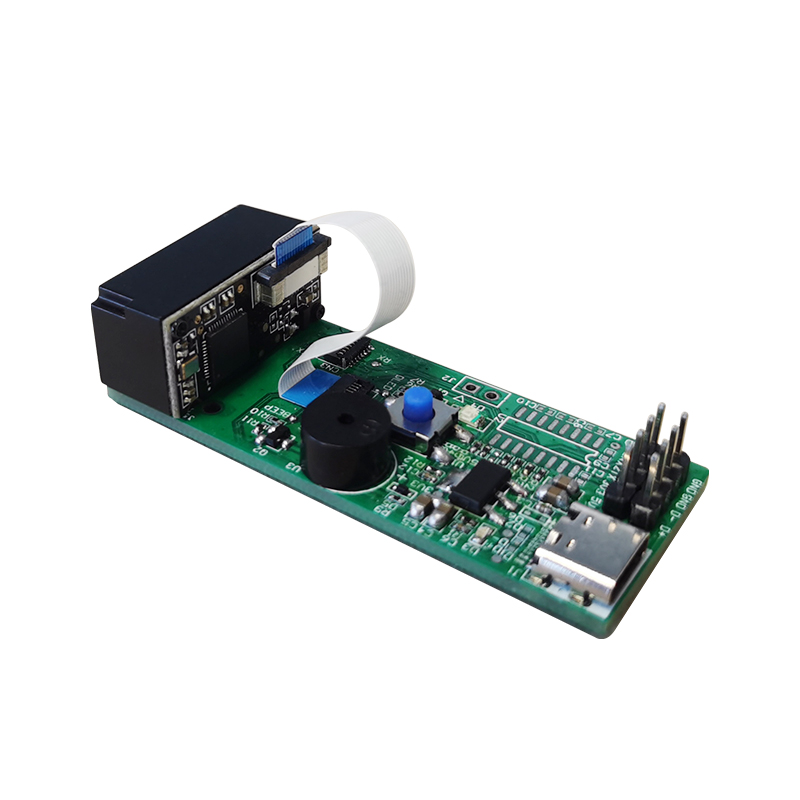
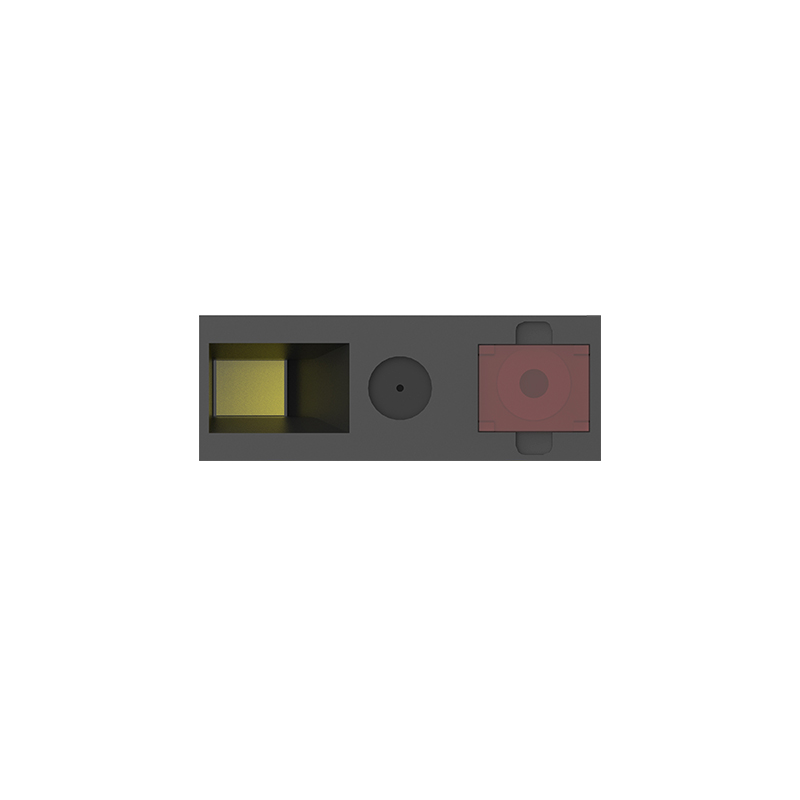
Most desktop models use a 2D area-imaging sensor. This sensor takes a digital image of the code and uses decoding software to identify the data. Unlike older laser scanners, an area imager can usually read both traditional one-dimensional barcodes and two-dimensional symbols such as QR Codes and Data Matrix codes.
GS1 explains that barcodes provide a way to identify products, logistics units, locations, and other business items across supply chains. The scanner does not decide the product price or inventory quantity. It reads the encoded identifier, and the connected software retrieves the related record.
The exact barcode list depends on the scanner model, but most modern 2D desktop scanners support the following formats:
Before buying, check the manufacturer’s supported symbology list. A scanner advertised as a “barcode scanner” may support only 1D codes. If the business expects to scan QR Codes, Data Matrix labels, mobile-phone screens, or GS1 DataMatrix symbols, it needs a 2D imaging model.
GS1 is encouraging the wider use of 2D barcodes in retail. Its “Sunrise 2027” initiative aims to make retail systems capable of scanning 2D barcodes at the point of sale by the end of 2027. This does not mean every store must replace its scanner immediately, but it makes 2D compatibility an important purchasing factor for new equipment.
For example, when a product with an EAN-13 barcode is scanned, the scanner usually sends the 13-digit identifier. The POS system then looks up the product name, price, tax settings, and stock record. The scanner itself is not a replacement for inventory software; it is the data-entry link between the physical label and the digital system.
At a checkout counter, a presentation scanner allows the cashier to move products across the scanning window. This can reduce the need to pick up and aim a handheld scanner. A model with a wide scanning field is useful when items arrive at different angles.
Retailers should confirm compatibility with their POS system, barcode formats, receipt workflow, and local keyboard layout. USB HID mode is often simple because the scanner behaves like a keyboard, but some POS systems require USB COM or RS-232 communication.
Inventory teams use scanners to receive goods, count stock, verify shelf locations, and record transfers. A desktop unit is suitable for a fixed workstation where boxes or products are brought to the scanner.
For mixed labels, choose a 2D model that can read both printed barcodes and codes displayed on a mobile device. If workers must scan large cartons away from a desk, a handheld or cordless scanner may be more suitable.
At a packing desk, the scanner can verify an order number, product SKU, shipping label, and return authorization. Code 128, GS1-128, QR Code, and Data Matrix support may be relevant depending on the shipping software and supply chain partners.
The scanner should be positioned so that workers can present labels without blocking the packing process. A stand with adjustable angles can improve access and reduce unnecessary hand movement.
Hospitals and laboratories use barcode identification to track patients, specimens, medication packages, and equipment. GS1 and the U.S. Food and Drug Administration’s Unique Device Identification system both support standardized identification practices for medical devices.
Healthcare buyers should verify support for Data Matrix, GS1 Application Identifiers, and the data format required by the hospital information system. A scan is only useful if the software correctly separates fields such as item number, lot number, and expiration date.
Manufacturers use barcode scanning for work-in-process tracking, component verification, serial number recording, and quality control. Data Matrix symbols are useful when the label area is small or when a large amount of information must fit into a compact mark.
For production environments, check the scanner’s operating temperature, sealing rating, drop resistance, mounting options, and ability to read low-contrast or directly marked codes.
Libraries can use desktop scanners for lending and returns. Offices can scan documents, assets, and visitor badges. Event organizers can use them to scan tickets shown on paper or mobile screens.
These applications often benefit from a compact design, USB plug-and-play connection, and the ability to read QR Codes from phone displays.
Typing a long product code creates opportunities for transposed digits, missing characters, and duplicate records. Scanning transfers the encoded value directly into the host system. The actual accuracy depends on the barcode quality, scanner configuration, software, and operator process, so businesses should test the complete workflow rather than rely only on a product specification.
A desktop scanner stays in a fixed position. This is useful when the employee is holding a product, opening a package, or checking a screen at the same time. Presentation mode can also make repeated scanning more consistent at a checkout or packing station.
Modern 2D imagers can often read QR Codes and other symbols from smartphones, tablets, and computer monitors. This supports paperless tickets, digital coupons, mobile returns, and electronic order confirmation.
A configured scanner can add a prefix, suffix, carriage return, or tab after each scan. For example, adding an “Enter” suffix may submit a scanned SKU automatically in a spreadsheet or warehouse application. Configuration should be tested carefully because an incorrect suffix can create extra records or move data into the wrong field.
Choose 1D if the business scans only traditional linear retail or warehouse labels. Choose 2D if it needs QR Codes, Data Matrix, PDF417, mobile-screen scanning, or future retail compatibility. For most new deployments, a 2D area imager provides broader format coverage.
Measure the normal distance between the barcode and the scanner. A compact counter scanner may be designed for close-range scanning, while a warehouse station may need greater depth of field. Test the smallest barcode, largest barcode, damaged label, and glossy package used in daily work.
Screen scanning depends on the sensor, illumination, reflection control, and software. If the business scans digital tickets or mobile coupons, test the scanner with different screen brightness levels and screen protectors.
Retail counters, laboratories, and production areas have different conditions. Look for documented drop resistance, ingress protection, cable strength, and cleaning compatibility. Healthcare environments may require materials that tolerate approved disinfectants.
A good scanner should provide a clear configuration guide and programming barcodes or software. Important settings include keyboard country, trigger mode, beeper volume, illumination, symbology enablement, and data formatting.
Ask whether the scanner works with the operating system, POS platform, inventory application, browser-based system, and database workflow. A scanner can successfully decode a barcode but still fail to work correctly if the host application expects a different interface or character format.
Do not test only with the barcode printed in the user manual. Real labels may be curved, wrinkled, reflective, low contrast, or partially damaged. A short pilot test at the intended workstation can identify problems before a wider rollout.
Check the USB port, cable, power adapter, and host computer. Some high-performance scanners require more power than a passive hub can provide. Connect the device directly to the computer or use the recommended power supply.
The scanner may have decoded the symbol but may be connected in the wrong interface mode. Check whether the host expects USB HID, USB COM, or RS-232. Also confirm that the cursor is active in the target application.
The unsupported symbol type may be disabled. The label may also be too small, damaged, reflective, or outside the scanner’s depth of field. Enable the required symbology and test the barcode at the recommended distance.
This often results from a keyboard-country mismatch or incorrect data formatting. Set the scanner’s keyboard layout to match the host computer. If the barcode contains an application identifier or special character, confirm that the software supports the expected data string.
Presentation scanners may detect the same barcode repeatedly if the item stays in view. Enable a duplicate-scan delay, presentation timeout, or motion detection setting. The correct value depends on how quickly workers move products through the scan area.
Increase the phone’s screen brightness, remove strong reflections, keep the display flat to the scanner, and clean the scan window. If the problem continues, test the scanner’s screen-reading capability and confirm that the QR Code has a sufficient quiet zone around it.
Regular cleaning matters because dust and fingerprints on the scan window can reduce image quality. A simple maintenance schedule is especially useful in checkout, healthcare, and packing areas where the device is used throughout the day.
| Feature | Desktop Scanner | Handheld Scanner |
|---|---|---|
| Best for | Fixed counters, checkout stations, and packing desks | Large items, shelves, pallets, and mobile work |
| Typical operation | Hands-free presentation scanning | User aims the scanner at each code |
| Mobility | Limited to the workstation | High, especially with cordless models |
| Setup | Usually stays connected and mounted | May require a cradle, battery, or wireless pairing |
| Ideal workflow | Repeated scanning at one location | Scanning items across a room, shelf, or warehouse |
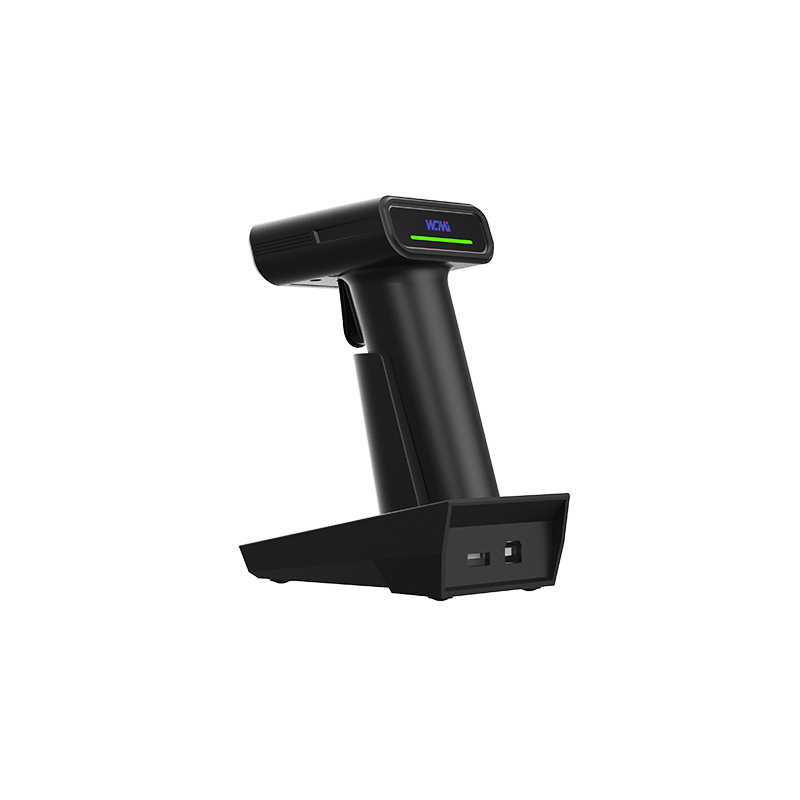
Some businesses use both types. A desktop model can handle checkout or packing, while a handheld scanner supports shelf checks and receiving. The correct choice depends on the movement of the goods, not only on the barcode format.
Yes, if it uses a 2D area-imaging engine and has QR Code support enabled. A 1D laser scanner generally cannot read QR Codes.
Many 2D desktop scanners can read codes from smartphone screens. Performance depends on screen brightness, glare, code size, scanner optics, and the quality of the QR Code or other 2D symbol.
USB HID models often send scan data as keyboard input and may work without a dedicated driver. USB COM, RS-232, and advanced integration modes may require drivers or software settings. Always confirm the requirements of the host application.
A 2D scanner is more flexible because it can read common 1D and 2D formats. A 1D scanner may be sufficient for a business that uses only UPC, EAN, Code 39, or Code 128 labels. The decision should be based on current and planned barcode types.
Some imaging engines can decode partially damaged or low-quality labels, but no scanner can reliably recover every damaged code. Improve label printing quality, keep a clear quiet zone, and test the scanner with the actual labels used in the business.
Use the scanner’s duplicate-scan prevention, timeout, or presentation-mode settings. The best delay depends on the speed of the workflow. Test the setting so it prevents repeats without slowing the operator.
Test the smallest and largest labels, every required symbology, curved packaging, reflective surfaces, damaged labels, and phone screens. Also test the complete path from scan to POS, inventory, shipping, or healthcare software.
Start with the manufacturer’s user guide, configuration sheet, interface manual, and support documentation. For product identification standards, consult GS1. For medical device identification, review FDA UDI resources. Businesses considering a new scanner can also explore WCMI product information and request a practical trial using their own labels.
Begin by listing the barcode types, host systems, scan distance, daily scan volume, connection method, and environmental conditions. Then test a suitable 2D desktop model with real products and real software. Review the user guide before changing configuration settings, and document the final setup so replacement devices can be installed consistently.
As QR Codes, Data Matrix, and other 2D symbols become more common in retail, healthcare, manufacturing, and logistics, choosing a scanner with the right decoding support can protect the workstation from an early upgrade. For more information, compare WCMI options, request a sample, and test the device with your own labels before deployment. A careful trial is the most reliable way to select a desktop barcode scanner for fast hands-free scanning.
HOT PRODUCTS
It has a perfect customer response mechanism in 24 hours to provide you with first-class after-sales service.
Quick Links
Quick Links
Contact Us
Tel.: +86 22 6621 1296
Email: liu_y@wavecreating.com
Add.: No19 Xinhuanxi Road, Teda, Tianjin, China
Fax: +86 022 6621 1296
Whatsapp: 86 18522521070