Sep. 04, 2026
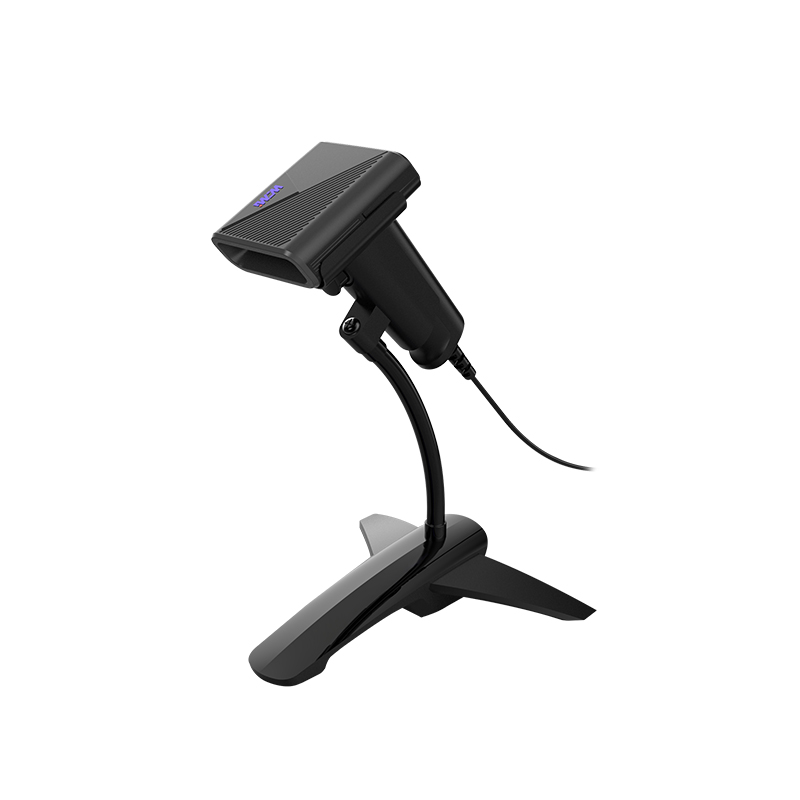
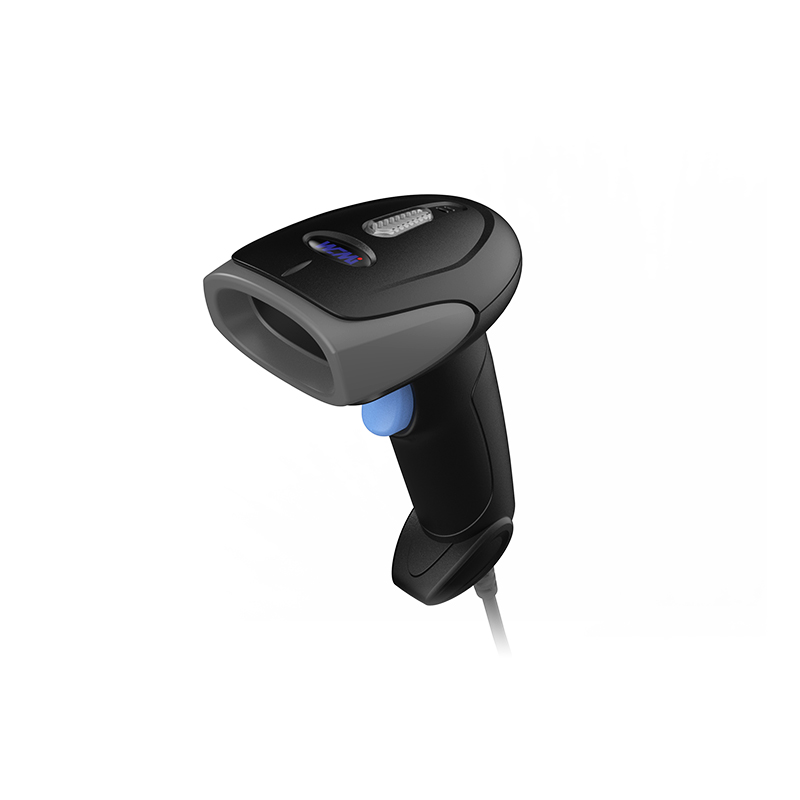
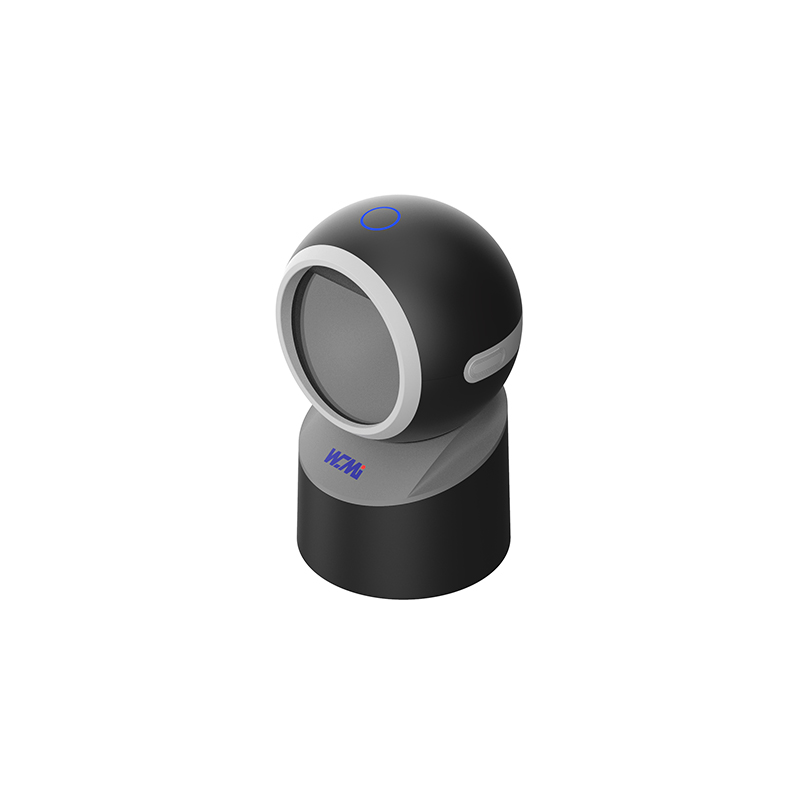
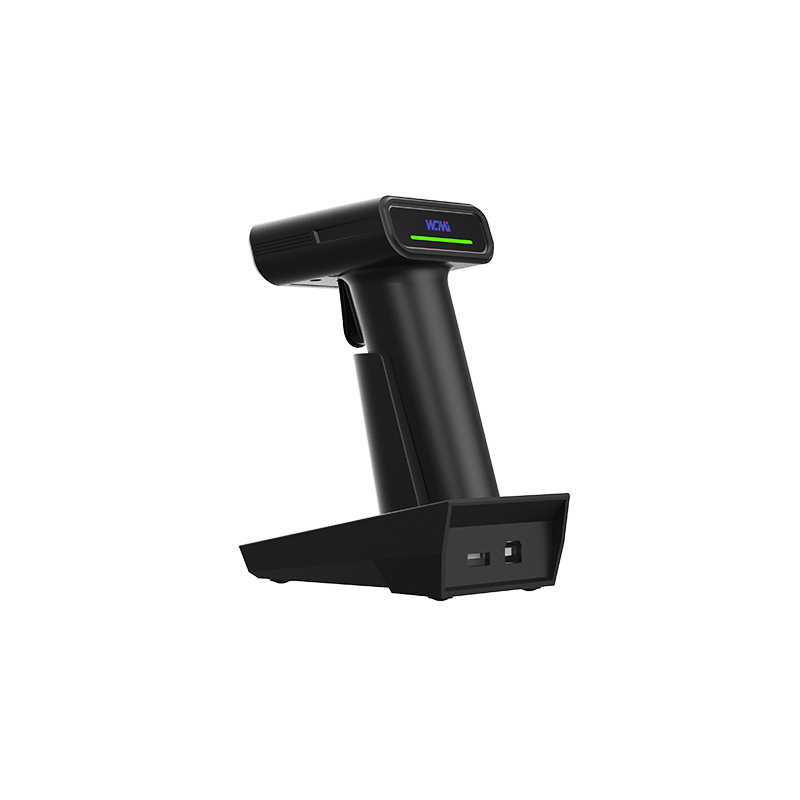
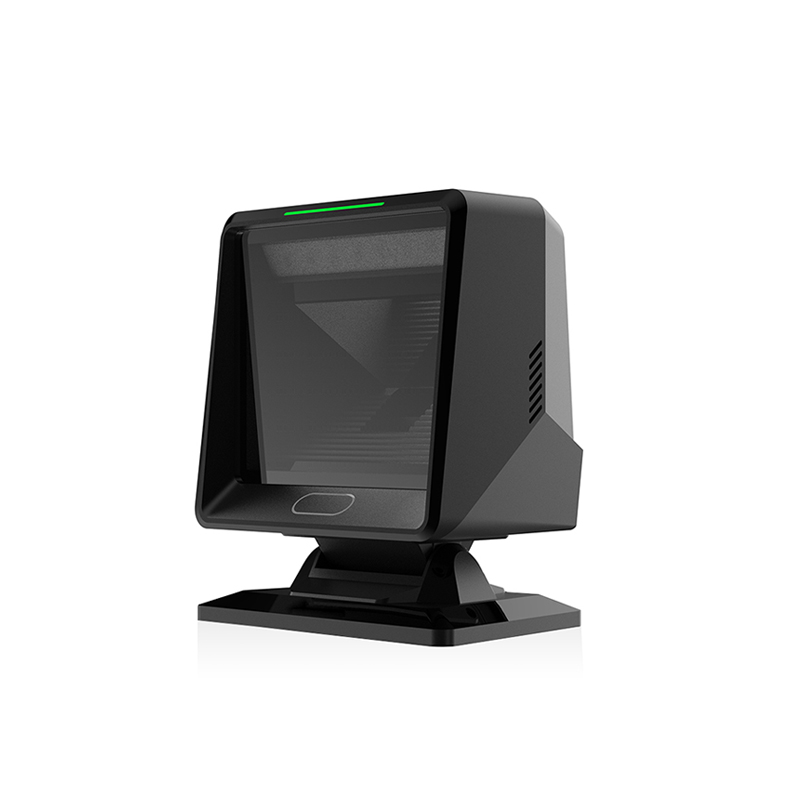
A Desktop Barcode Scanner helps businesses capture product, parcel, ticket, and payment data without typing numbers by hand. In a retail counter, warehouse desk, pharmacy, or reception area, the scanner reads a code and sends the data to a computer, POS terminal, or inventory system. A desktop barcode scanner for retail checkout can reduce manual entry errors, while a USB desktop barcode scanner for QR codes can support both printed labels and mobile tickets. For busy workstations, a hands-free desktop barcode scanner lets staff present an item instead of holding a trigger.
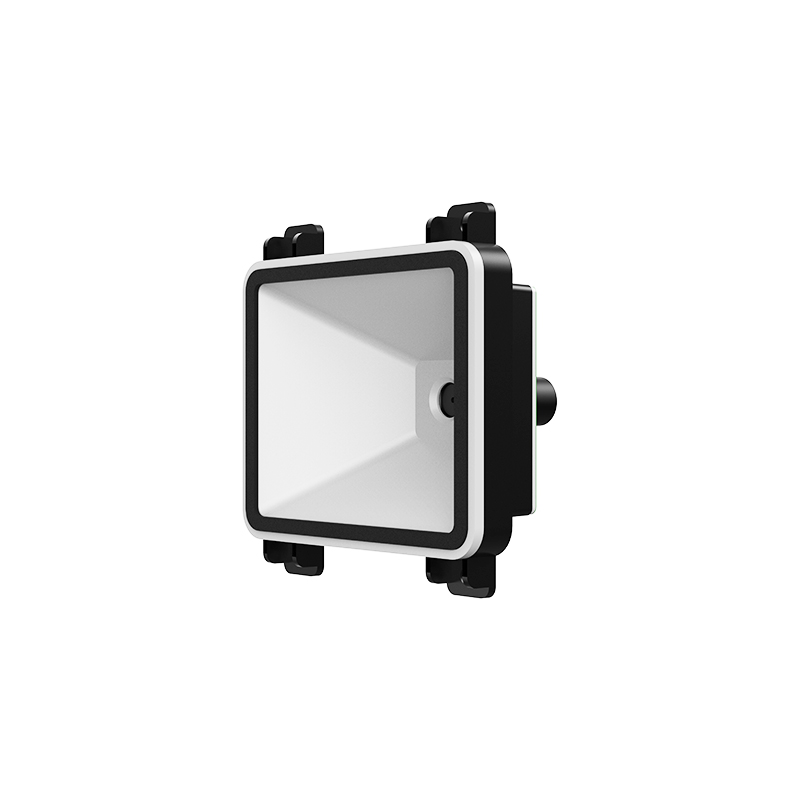
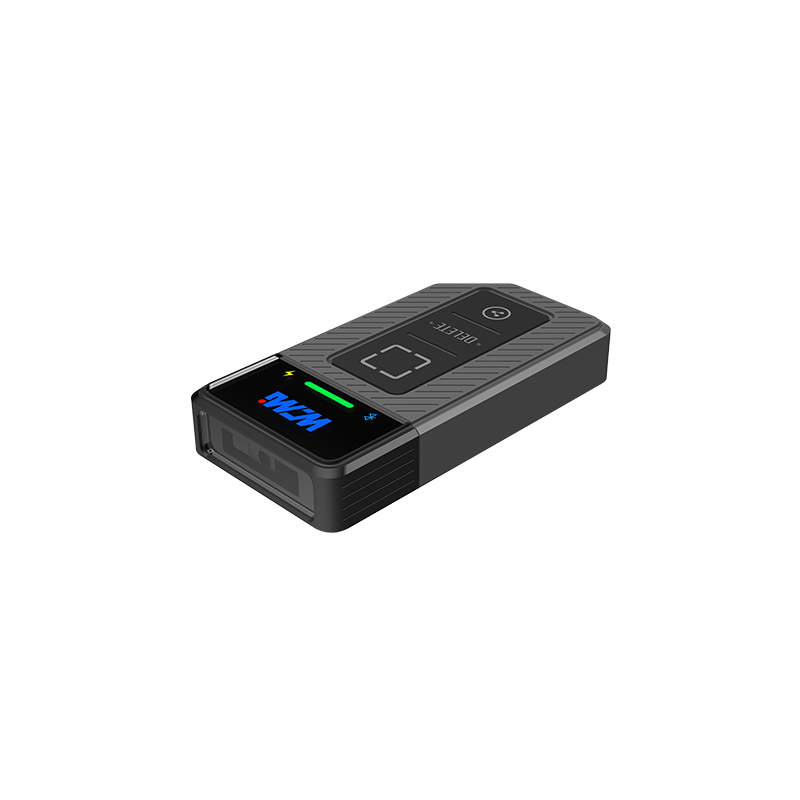
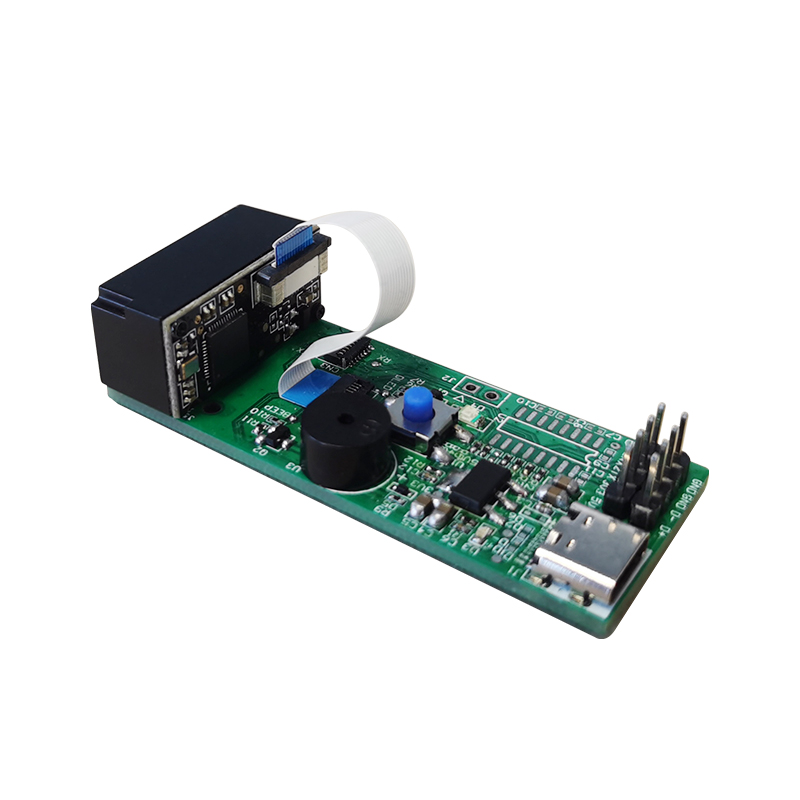
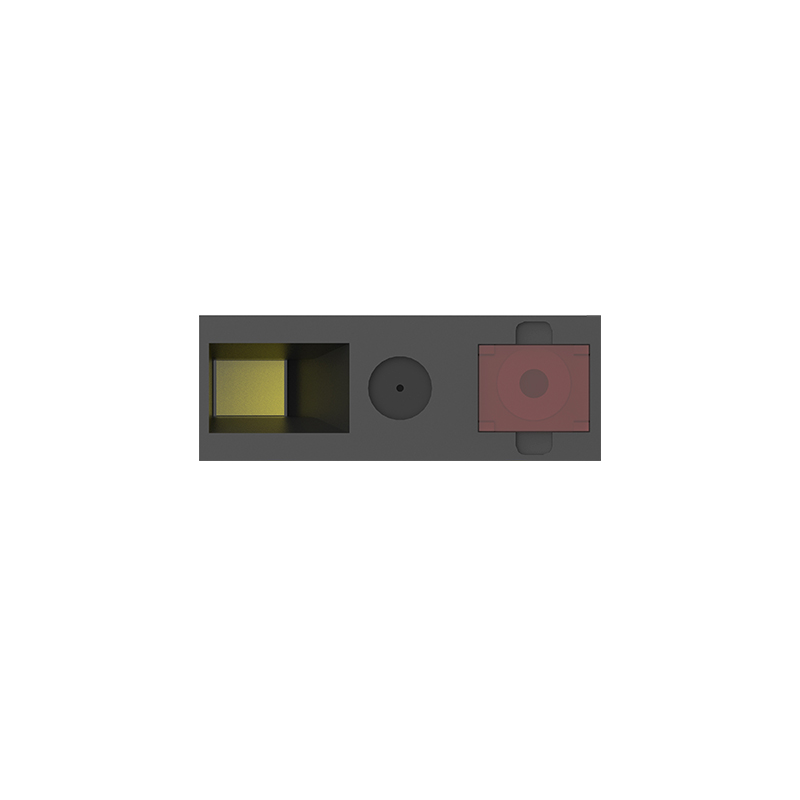
A desktop barcode scanner is a fixed-position or compact countertop device that reads barcodes and two-dimensional codes. It normally uses an image sensor and LED or laser illumination to capture the code. The scanner then decodes the pattern and sends the result to a connected system.
Most modern models are 2D area-imaging scanners. They capture a picture of the code instead of reading only a single line. This allows them to read:
“Desktop” describes the working position, not necessarily the operating system. The device may connect through USB, RS-232, Bluetooth, or another interface. Before buying, confirm that the scanner supports the barcode symbologies and communication method used by your software.
A scanner does not normally “understand” the product name or price. It reads the code value. The connected database or application provides the product description, price, stock level, or customer record.
Yes, a compatible 2D desktop barcode scanner can read QR Codes from phone screens. However, performance depends on the scanner’s optical design, focus range, illumination, decoding software, and the quality of the phone display.
For reliable results, use these conditions:
QR Codes use error correction, which helps a code remain readable when part of the pattern is damaged. According to DENSO WAVE, QR Codes support four error-correction levels, with approximate restoration capacities of 7%, 15%, 25%, and 30% of codewords. Higher correction can improve durability, but it also reduces the amount of data that fits in the same physical area. Source: .
At a checkout counter, the operator presents the item to the scanner. The POS system receives the barcode number and retrieves the matching price. A presentation-style scanner can support continuous scanning, which is useful when many products are processed in sequence.
Retailers should check whether the scanner reads both printed product labels and QR Codes displayed by loyalty or payment applications. They should also confirm that the scanner can work under the store’s lighting conditions.
Desktop scanners support receiving, stock counting, product returns, and dispatch verification. Staff can scan a product code and compare it with the expected item in the inventory system. This creates a digital record and reduces reliance on handwritten notes.
For warehouse use, scan range and label condition are important. A scanner designed for close countertop use may not read large cartons several meters away.
Courier offices and online sellers use scanners to record parcel labels, return packages, and dispatch events. Code 128 and other logistics symbologies are common in shipping environments. A USB model is often suitable for a fixed packing desk, while a wireless model may be better when workers move between stations.
Healthcare organizations use barcode identification for medicines, patient wristbands, laboratory samples, and supplies. In these settings, the scanner must match the organization’s data protection rules and cleaning procedures. A sealed housing is easier to maintain where frequent disinfection is required.
Event staff can scan QR Codes from printed tickets or mobile phones. A 2D scanner with a wide viewing area helps users present tickets quickly. The ticketing platform, rather than the scanner alone, controls whether a code is valid, already used, canceled, or assigned to the correct event.
Libraries can use barcodes for loan records and member cards. Offices can label equipment and scan assets during audits. A desktop barcode scanner can send the code directly into a spreadsheet, web form, or asset-management application when configured as a USB keyboard device.
Typing a long product or parcel number creates opportunities for transposed digits and missing characters. Scanning transfers the encoded value directly to the software. The exact reduction in errors depends on the operator, label quality, and application controls, so businesses should measure their own correction rate before and after installation.
Scanning can shorten the time needed to identify an item compared with reading and typing its code. The actual improvement depends on the code length, database response time, employee movement, and scanner settings. A useful test is to record the average seconds per item for 100 real products before selecting a device.
A countertop scanner stays in a known position. Employees do not need to search for a handheld unit or place it back after every scan. This can make the workstation easier to operate, especially during repeated checkout or receiving tasks.
A 2D imaging scanner can often read codes from paper, plastic packaging, mobile screens, and labels with different orientations. This makes one device suitable for product checkout, digital coupons, returns, and event tickets.
USB Human Interface Device mode makes the scanner behave like a keyboard. The decoded value appears in the active input field. This is simple for spreadsheets, browser-based systems, and many POS programs. The scanner may add a suffix such as Enter or Tab after each scan.
Serial communication gives software more control over the data stream. It may be useful for industrial applications or custom inventory programs, but it often requires a driver and specific software settings.
RS-232 is still used with some POS terminals, industrial controllers, and older systems. It requires correct cable wiring, baud rate, parity, data bits, and stop-bit settings.
Bluetooth removes the USB cable and can support a cleaner counter. Check battery capacity, pairing limits, wireless range, and what happens when the scanner loses connection. A presentation scanner that remains fixed may not need wireless connectivity.
List every code used in the business. If the list includes only UPC or EAN product labels, a 1D scanner may be enough. If it includes QR Codes, Data Matrix, PDF417, or phone-screen tickets, choose a 2D imager.
GS1 explains that its system includes data carriers such as EAN/UPC, GS1-128, ITF-14, GS1 DataMatrix, and GS1 QR Code. Businesses should confirm the exact GS1 application and data format used by their supply chain. Source: .
A wide scanning window is helpful when users present codes at different angles. A short-range desktop scanner may be ideal for small products, while a longer-range model is better for large parcels or labels placed farther away.
Request a product demonstration using your real labels, glossy packaging, damaged labels, low-contrast prints, and mobile screens. Marketing specifications often use ideal test labels. Actual performance can change with print quality, display glare, code size, and ambient light.
Check the operating system, POS platform, browser application, driver requirements, and data suffix settings. A scanner that reads the code correctly can still appear unreliable if it sends an unwanted Enter, Tab, carriage return, or prefix.
For retail, focus on presentation speed and screen reading. For warehouses, consider impact resistance, cable length, label distance, and dust exposure. For healthcare, review housing design and cleaning compatibility. For public counters, a stable base and clear user feedback can improve operation.
Important support features include programming barcodes, firmware updates, replacement cables, mounting options, and warranty terms. Keep a written record of the configuration so a replacement unit can be set up with the same suffixes and enabled symbologies.
First, check whether the scanner is a 2D model. Then test the QR Code at the recommended distance. Increase phone brightness, remove glare, and make sure the entire code is visible. If the code is too small, move the phone closer only within the scanner’s focus range.
The scanner may be sending data to the wrong window, using the wrong interface mode, or missing the required Enter or Tab suffix. Test the scanner in a text editor. If the value appears correctly there, review the POS or application input settings.
Prefixes and suffixes are programmable. Scan the manufacturer’s configuration barcode for the required suffix, such as Enter, Tab, or none. Do not change settings without recording the original configuration.
Inspect the label for low contrast, wrinkles, quiet-zone violations, reflections, or damage. Clean the scanner window with an approved method. Also check for direct sunlight or strong reflections from glossy packaging.
For USB models, test another port and cable. For Bluetooth models, check battery level, pairing status, wireless distance, and automatic sleep settings. If the problem affects several workstations, review the computer power-management settings.
Do not spray cleaning liquid directly onto the scanner. Apply the approved cleaner to the cloth if the manufacturer permits it. In healthcare or food-handling environments, follow the organization’s cleaning and infection-control policy.
Barcode scanning works best when the code follows a recognized standard and the connected database contains accurate records. GS1 recommends consistent use of identification keys and data carriers across supply chains. ISO/IEC 18004 defines QR Code technology, while ISO/IEC 15415 and ISO/IEC 15416 are commonly referenced for evaluating the print quality of two-dimensional and linear barcodes.
Businesses should separate three issues during troubleshooting:
This method prevents a business from replacing a scanner when the real problem is an incorrect database record or a poorly printed label.
Yes, a 2D imaging scanner can usually read common 1D and 2D formats. Confirm the supported symbology list before purchase because not every model supports every code type.
Many 2D models can scan QR Codes from both iPhone and Android screens. Success depends on screen brightness, glare, code size, focus distance, and the scanner’s decoding capability.
Neither design is always better. A desktop model suits fixed counters and repeated presentation scanning. A handheld model is more flexible for large products, shelves, pallets, and mobile stock counts.
Usually, no. The scanner sends the code value to the connected software. The POS or inventory database normally stores the product name, price, tax rate, and stock information.
A laser scanner reads reflected light from a linear barcode and is generally limited to 1D codes. An imaging scanner captures an image and can read 1D and 2D codes, including many QR Codes on mobile displays.
The scanner is probably configured with an Enter or carriage-return suffix. This is useful for many forms, but it may be incorrect for software that requires Tab or no suffix. Change the setting with the manufacturer’s programming guide.
Record baseline data before installation, such as average seconds per item, failed scans per 100 items, manual corrections, and checkout queue time. Repeat the same test after installation under similar conditions. This provides a more reliable result than using a general claim about speed.
Start by listing your barcode types, software platform, connection method, average scan distance, and daily scan volume. Then test a suitable 2D model with real packaging and phone screens. Review the configuration guide, document the final settings, and train staff on positioning, glare reduction, and basic troubleshooting.
For product options, configuration support, and a trial suited to your workflow, explore WCMI. A practical test with your own labels is the best way to confirm whether a WCMI Desktop Barcode Scanner meets your reading distance, QR Code, interface, and workstation requirements.
HOT PRODUCTS
It has a perfect customer response mechanism in 24 hours to provide you with first-class after-sales service.
Quick Links
Quick Links
Contact Us
Tel.: +86 22 6621 1296
Email: liu_y@wavecreating.com
Add.: No19 Xinhuanxi Road, Teda, Tianjin, China
Fax: +86 022 6621 1296
Whatsapp: 86 18522521070